Let an AI app work on your sites
ReDock Web serves one MCP door for the whole workspace:
https://app.redock.xyz/mcpPoint Claude, Claude Code, Cursor or any MCP client at it. The first connection lands on a consent page here, and nothing reaches a site before somebody approves it.
Connect an app
Section titled “Connect an app”-
Add the address above to your MCP client as a remote server. What that looks like depends on the client.
-
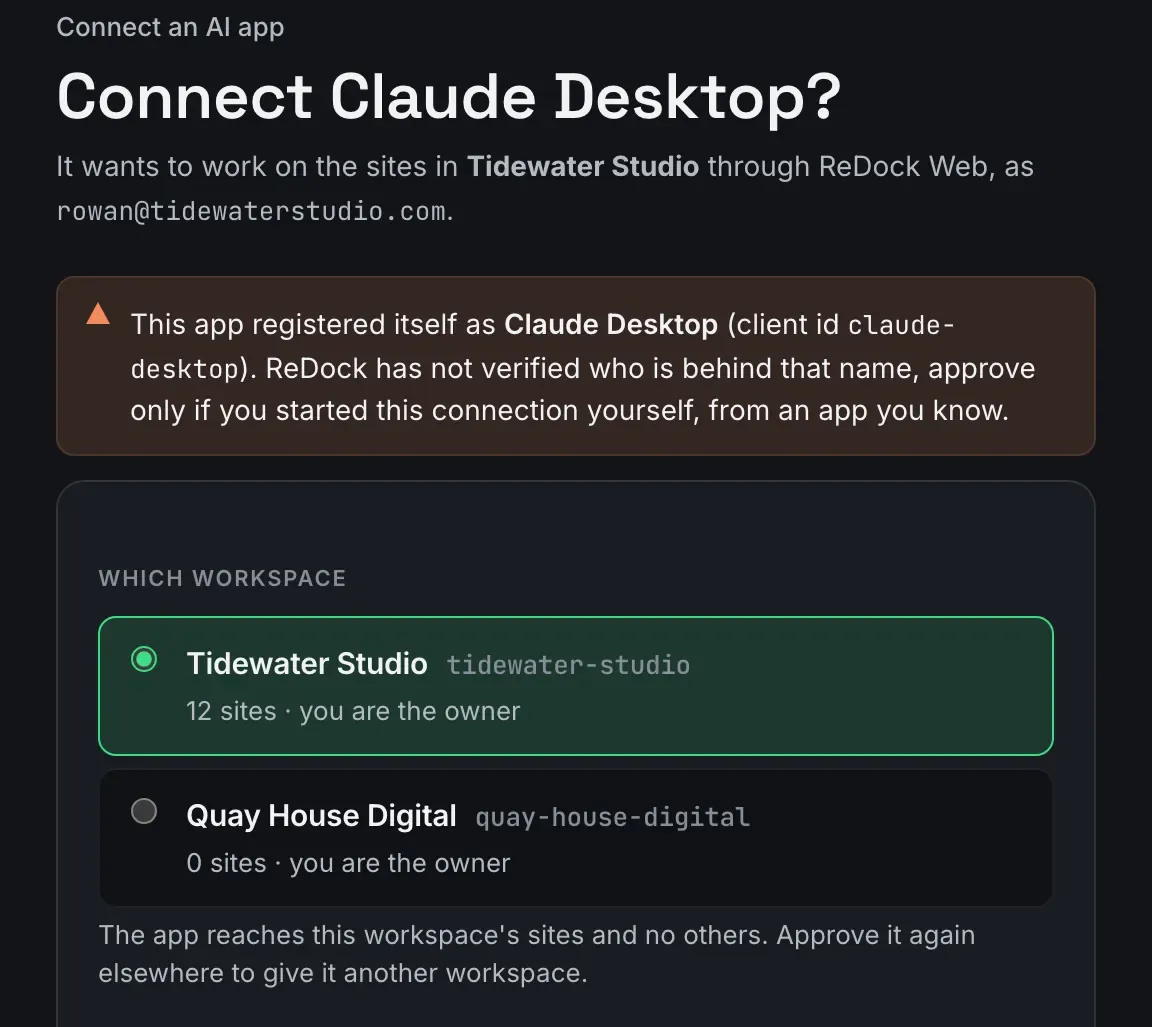
The client sends you here. The consent page names the app, the workspace it wants, and who you are signed in as. If ReDock has not verified who is behind the name the app registered itself with, the page says so in as many words.
-
Pick the workspace. The app reaches that workspace’s sites and no others. Approve it again elsewhere to give it another workspace.
-
Pick the level. Under it, What approving means says the four things that follow.
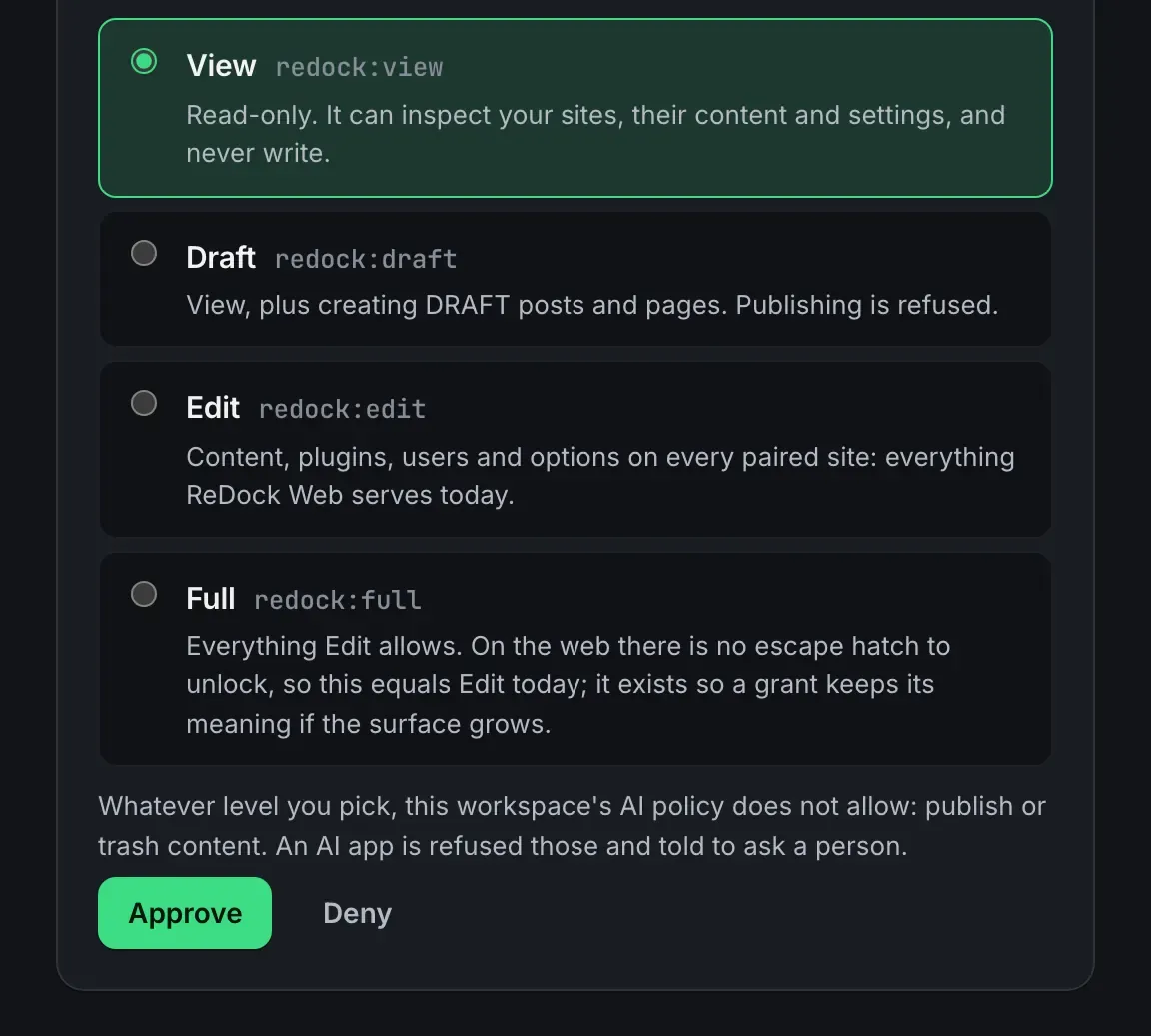
- Access is for this app only, in this workspace only, at the level you pick, and a level never widens what a site’s own plugin allows.
- Every change it makes is recorded under its name, next to yours, with your role at the time.
- Revoking it takes effect on its very next call.
- If you leave the workspace, the approval goes with you.
-
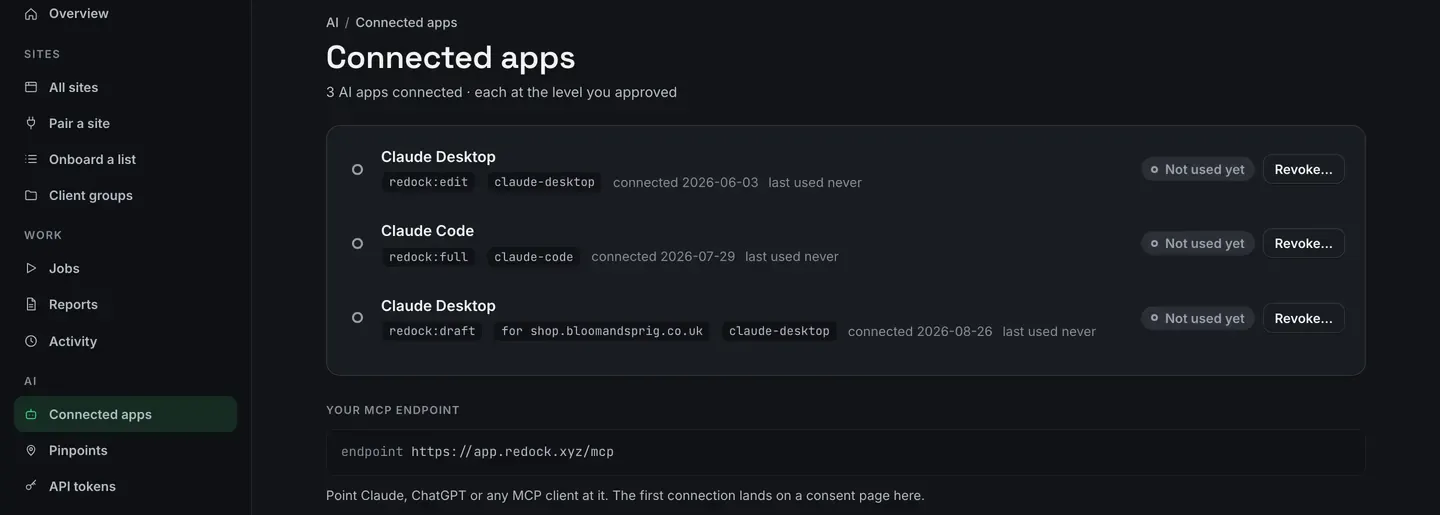
Approve. The app appears under Connected apps with its level, its client id, the date and a Revoke.
One site rather than the whole workspace
Section titled “One site rather than the whole workspace”A per-site address reaches that one site and nothing else in the workspace:
https://app.redock.xyz/mcp/s/<fingerprint>It is on the site’s own AI tab. Approving an app at that address gives it that site, and the rest of the workspace does not exist for it.
The seven policy switches
Section titled “The seven policy switches”The consent level says what an app may be trusted with. The Usage policy says what any AI app may do on its own, whatever level it holds.
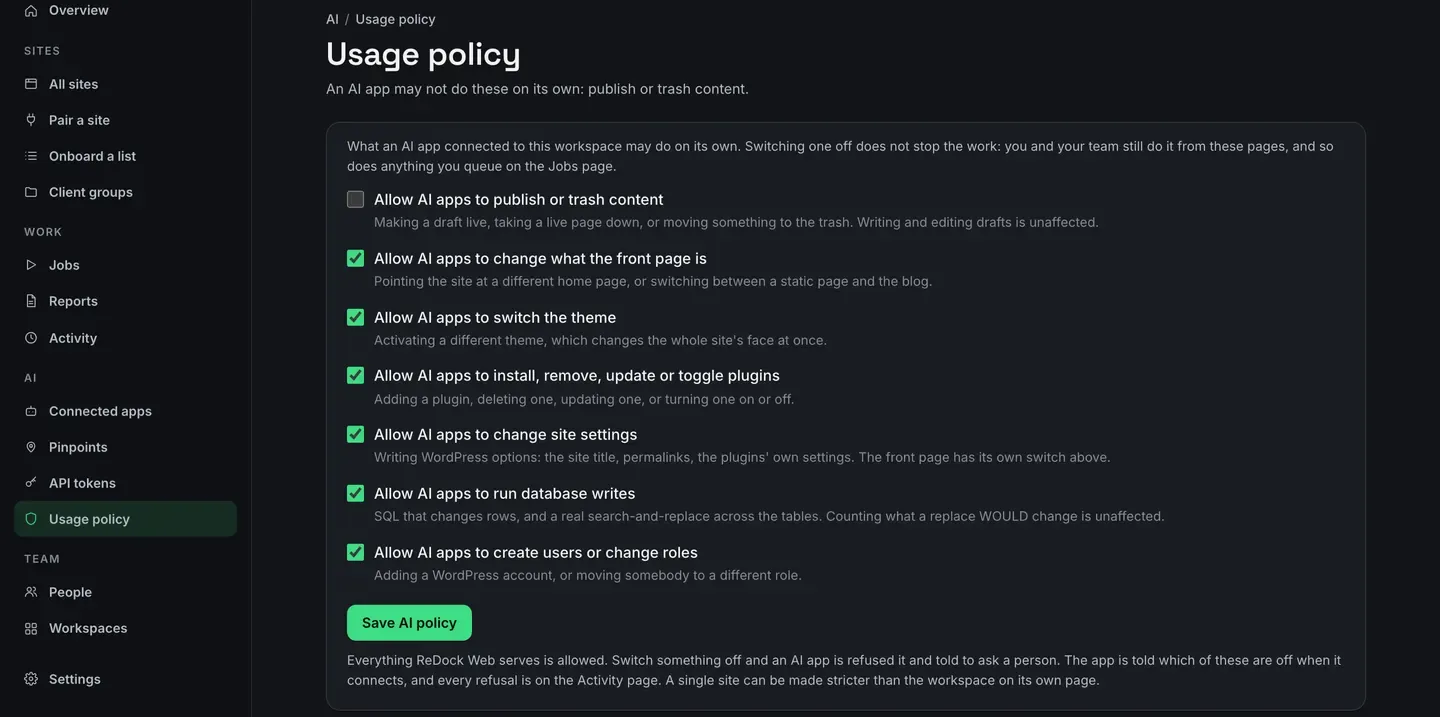
| Switch | What it covers |
|---|---|
| Publish or trash content | Making a draft live, taking a live page down, or moving something to the trash. Writing and editing drafts is unaffected. |
| Change what the front page is | Pointing the site at a different home page, or switching between a static page and the blog. |
| Switch the theme | Activating a different theme, which changes the whole site’s face at once. |
| Install, remove, update or toggle plugins | Adding a plugin, deleting one, updating one, or turning one on or off. |
| Change site settings | Writing WordPress options: the site title, permalinks, the plugins’ own settings. |
| Run database writes | SQL that changes rows, and a real search-and-replace across the tables. Counting what a replace would change is unaffected. |
| Create users or change roles | Adding a WordPress account, or moving somebody to a different role. |
Switch one off and an AI app is refused it at the door and told to ask a person. The app is told which switches are off when it connects, not when it fails.
It does not stop you. Your team still does all seven from these pages, and so does anything you queue on the Jobs page.
A single site can be made stricter than the workspace, on its own AI tab. The bottom of the Usage policy page lists the sites that tighten it.
Tokens, for a script with no browser
Section titled “Tokens, for a script with no browser”A script cannot sit through a consent page, so it carries a token instead.
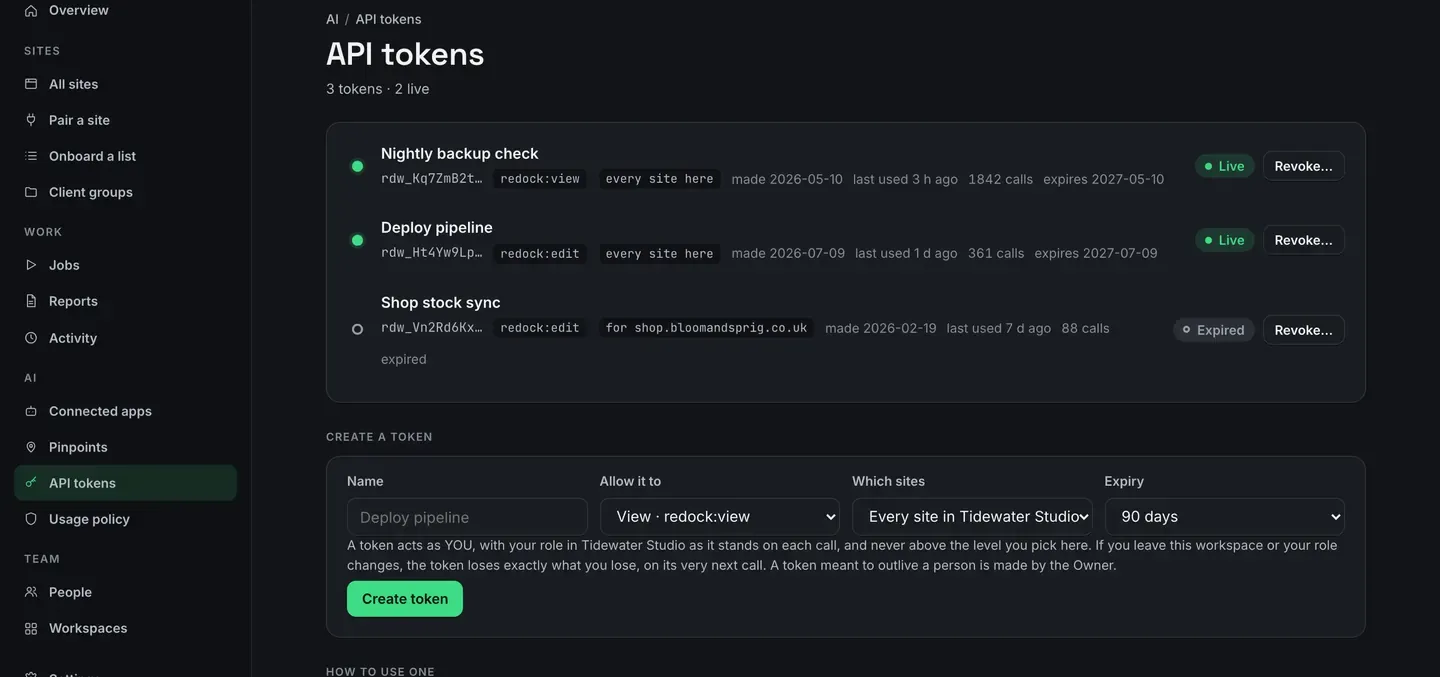
- Allow it to is the same four levels the consent page offers.
- Which sites is every site in the workspace, or one of them.
- Expiry is set when the token is made.
A token acts as you, with your role as it stands on each call, and never above the level you pick. If you leave the workspace or your role changes, the token loses exactly what you lose, on its very next call. A token meant to outlive a person is made by the owner.
Use it as a bearer token against the same door:
Authorization: Bearer rdw_...against https://app.redock.xyz/mcp, or a site’s own address when the token is for one site. The
four export files take one too: /activity.csv, /activity.json, /reports.csv and
/reports.json.
Revoking
Section titled “Revoking”Revoke is next to every app and every token. The next call is refused. Not the next hour, and not after a session expires.
Removing somebody from the workspace disconnects their AI apps in the same moment.
Every refusal is on Activity, with the code and what was asked.