Connect a site
A connected site is a live WordPress site you host, paired to your workspace through the ReDock Connect plugin. There are two ways in and they end in the same place. Pair one site by hand and you paste a key the site printed. Onboard a list and ReDock Web makes a short code per site, which somebody types into the plugin on each one.
Either way the site keeps its own key, and it is the site that hands the key over.
Pair one site
Section titled “Pair one site”-
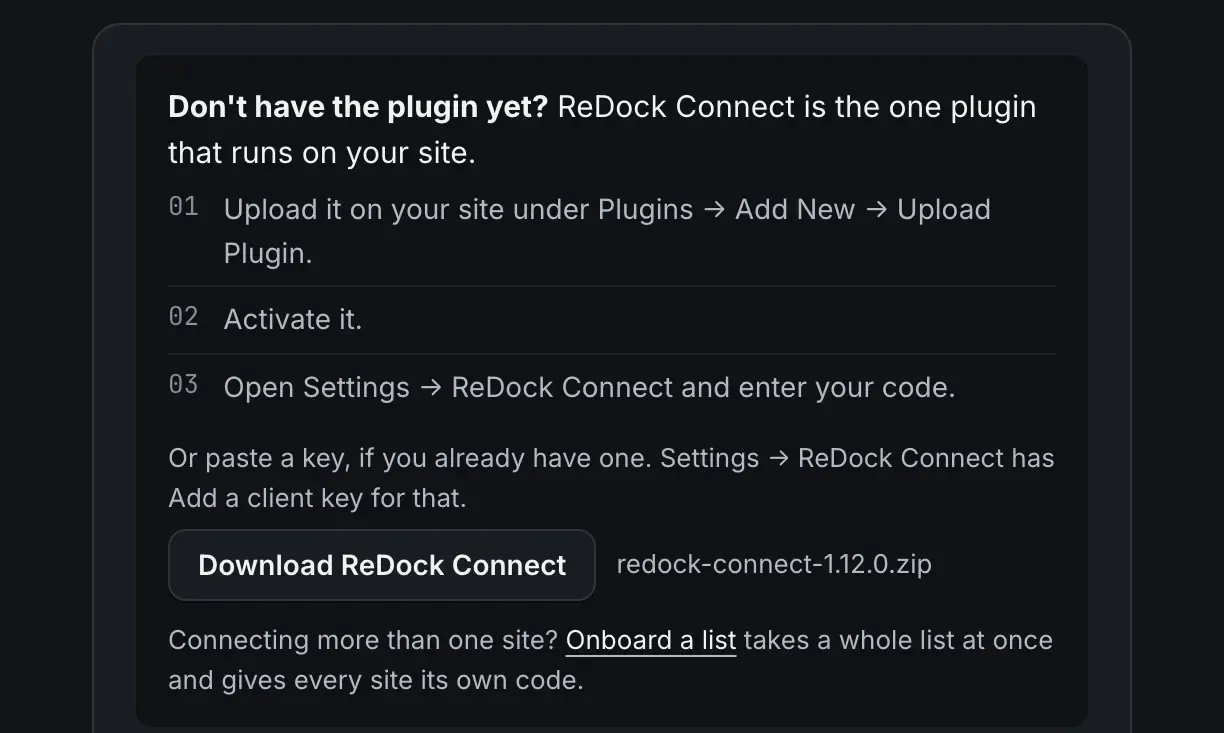
In ReDock Web, open Pair a site. The card at the top of the page has the plugin on it: press Download ReDock Connect and you get the zip.
-
On the WordPress site, go to Plugins → Add New → Upload Plugin, upload that zip, and activate it.
-
In the same site’s wp-admin, open Settings → ReDock Connect. This page is the whole switch: every way into the site is a key listed on it, and revoking one stops that client working straight away.

-
Under Add a client key, give the key a name you will recognise later, choose what it is used by, and press Add a client key. The key starts
rdk1_and is shown once. Copy it before you leave that screen. -
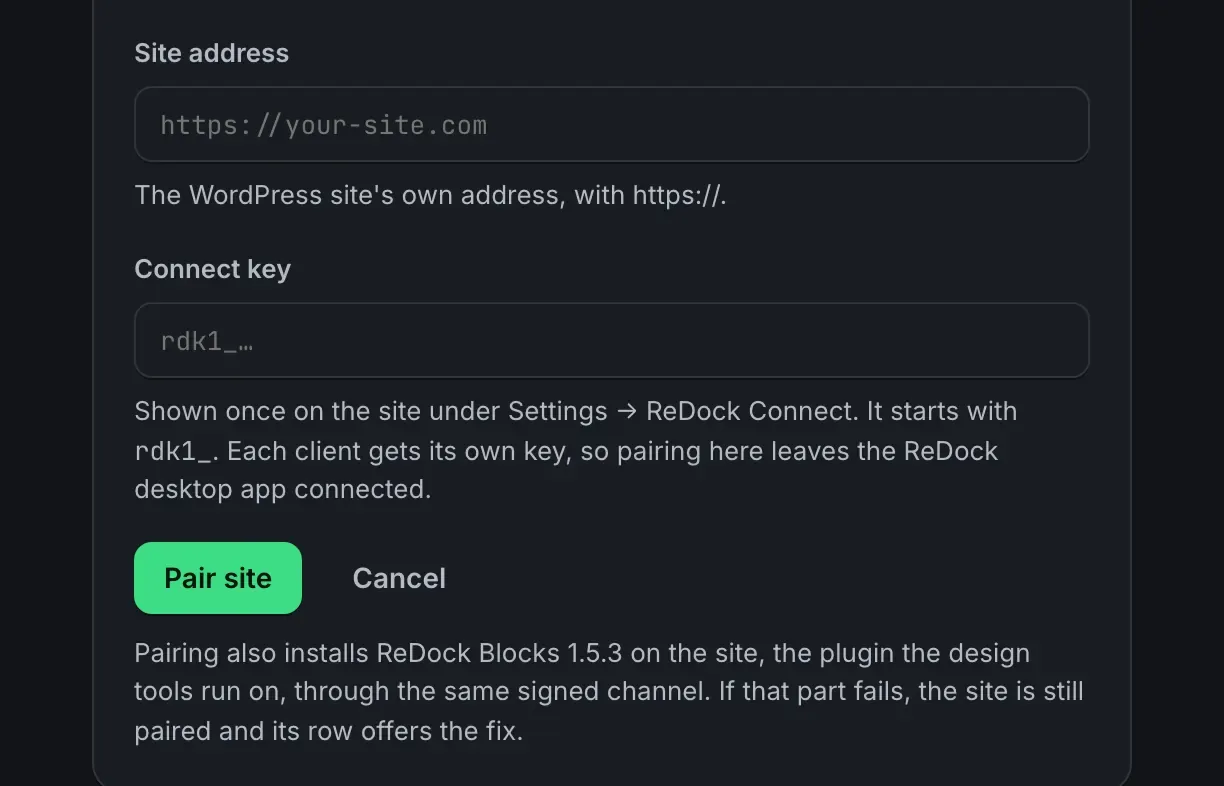
Back in ReDock Web on Pair a site, type the site address, paste the key, and press Pair site. ReDock Web asks the site to prove the key with a signed request before it saves anything.
-
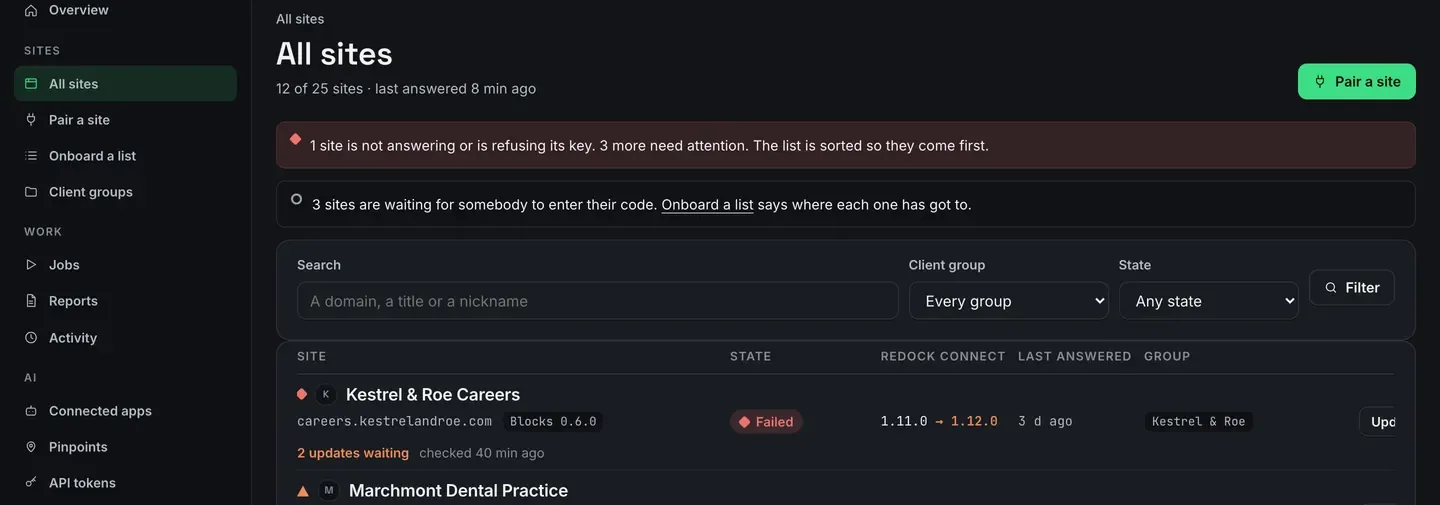
The site appears on All sites a moment later, with its state, its ReDock Connect version, when it last answered, and its client group.
Pairing also installs ReDock Blocks on the site, through the same signed channel, so the design tools work there without anybody uploading anything by hand. If that part fails the site is still paired, and its row offers the fix.
Onboard a list
Section titled “Onboard a list”Taking on a client usually means a dozen sites at once, so Onboard a list is built for a paste rather than a form.
-
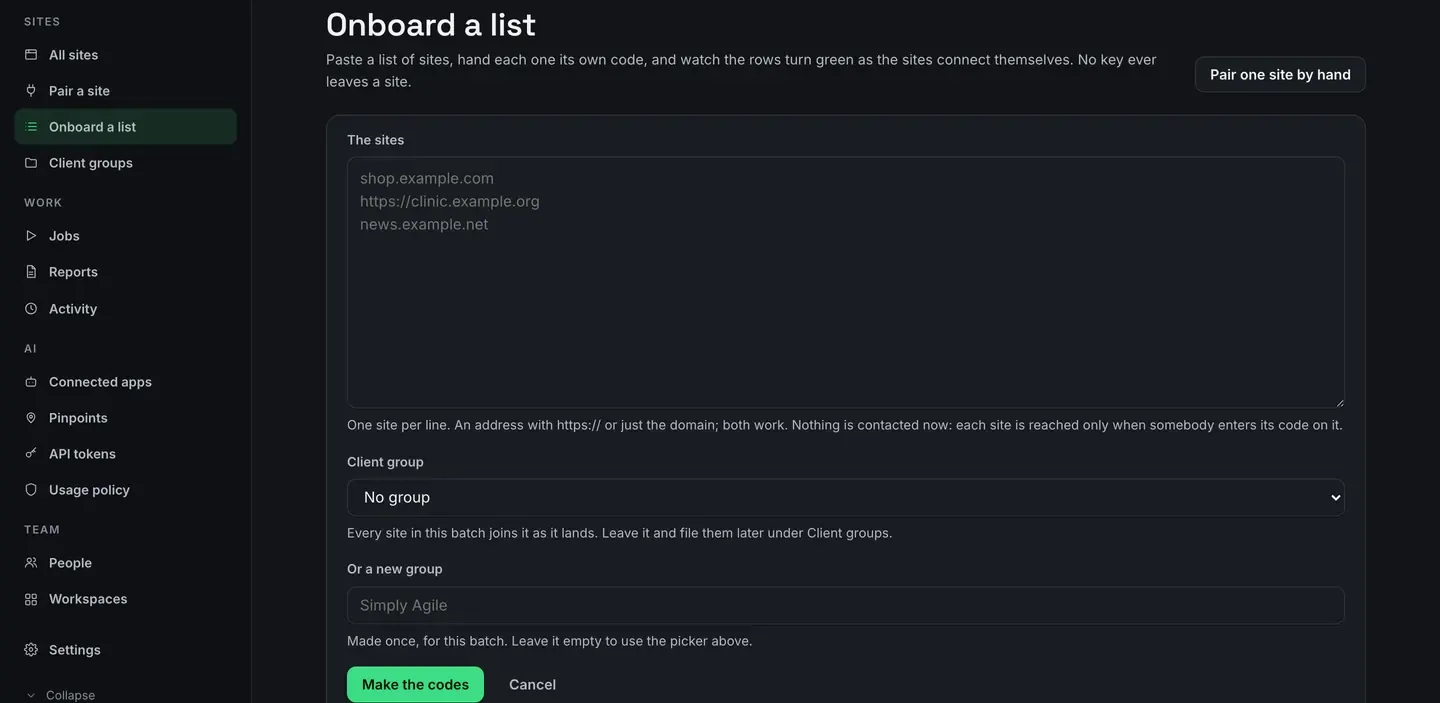
Open Onboard a list and paste the addresses, one site per line. Up to a hundred from one paste. An address with
https://or just the domain, either works. Nothing is contacted yet. -
Pick the client group the batch should join, or type a new one. Every site in the batch is filed under it as it lands, so the filing happens once rather than site by site afterwards.
-
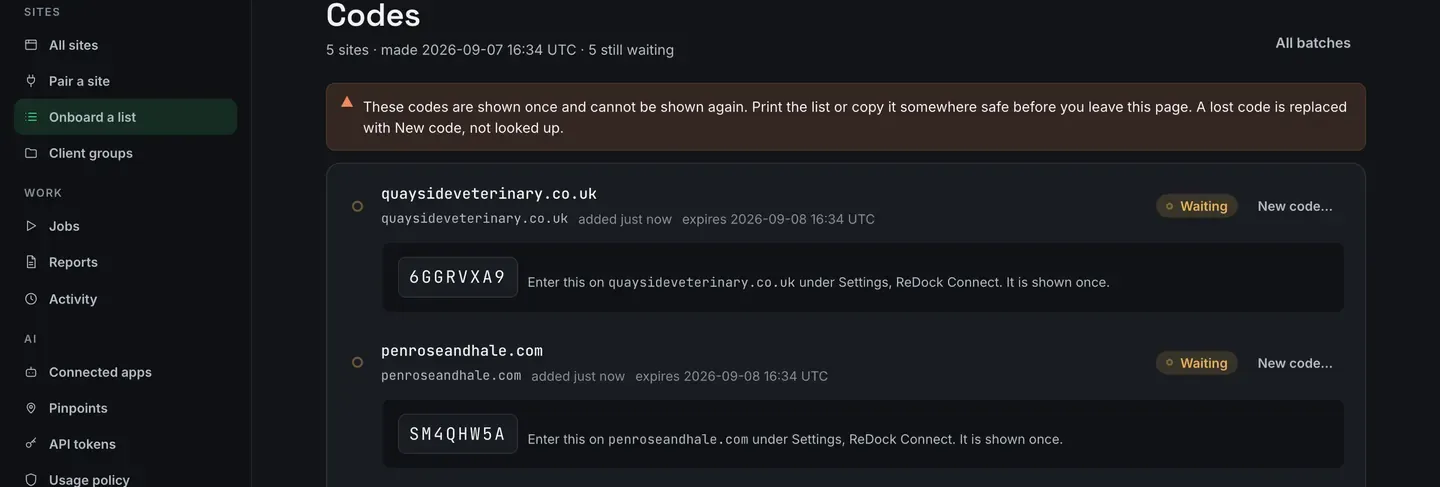
Press Make the codes. Each site gets a code of eight characters, from an alphabet with nothing in it that can be misread. The codes are shown once and cannot be looked up again, so print the list or copy it somewhere safe before you leave the page. A lost code is replaced with New code, not recovered.
-
On each site, an administrator opens Settings → ReDock Connect, types that site’s code and presses Connect. The site then sends its own key straight to ReDock Web over its own connection. Nothing is pasted, and the key never touches a clipboard or a browser address bar.
-
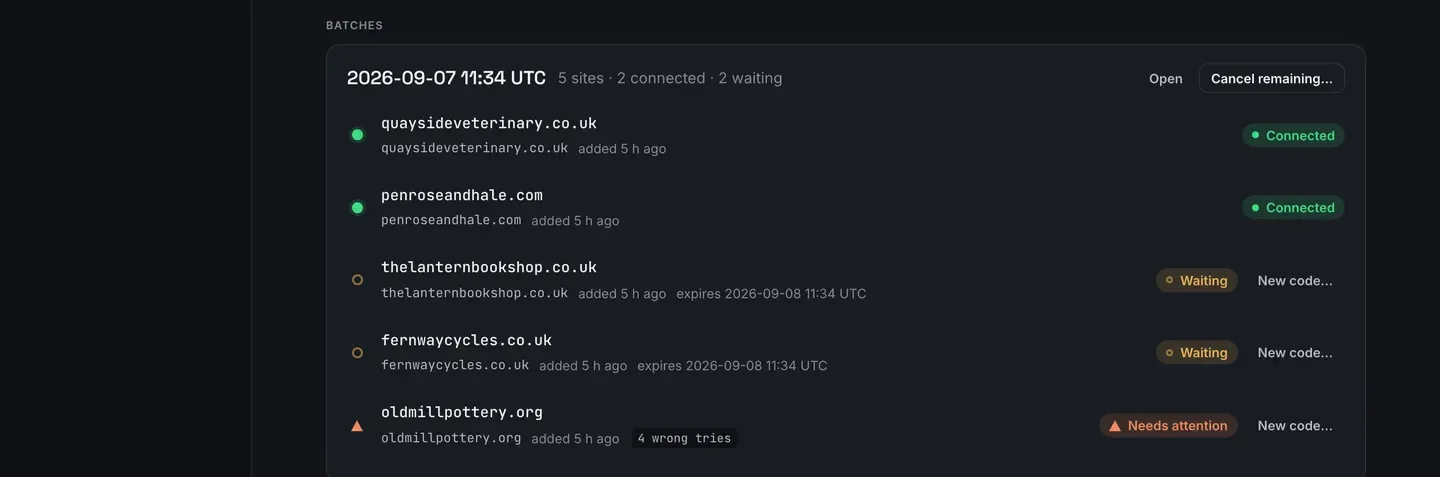
Watch the batch. Rows turn green as the sites answer. A code lasts 24 hours, works once, and dies on the fifth wrong try, so a row that has been tried four times says so.
Who holds what
Section titled “Who holds what”The site keeps the key. Every request between the site and ReDock Web is signed with it, and a request that is not signed correctly is refused. What ReDock Web stores is a working key derived from the one the site holds, wrapped under a secret only ReDock Web has. The key you pasted is discarded the moment it has been checked.
The key reaches inside the folders a site is edited in. It cannot touch wp-config.php or the
site root.
Taking it back
Section titled “Taking it back”One site can be paired with more than one client, each with its own key: your desktop app, your workspace, a colleague’s. The plugin’s settings page in wp-admin lists them all with a Revoke next to each, and Revoke all ends every one of them at once. Deactivating the plugin ends every connection too.
Revoking on the site is the end of it. There is no cookie session and no second door.
No account yet? Create one at app.redock.xyz, then come back to step 1. Already signed in? Open ReDock Web.