
The site page
Every connected site has a page of its own. Open it and ReDock reads the site: the strip under the heading says when, and Read it again asks now.

Overview
Section titled “Overview”What this site is, and what is connected to it.
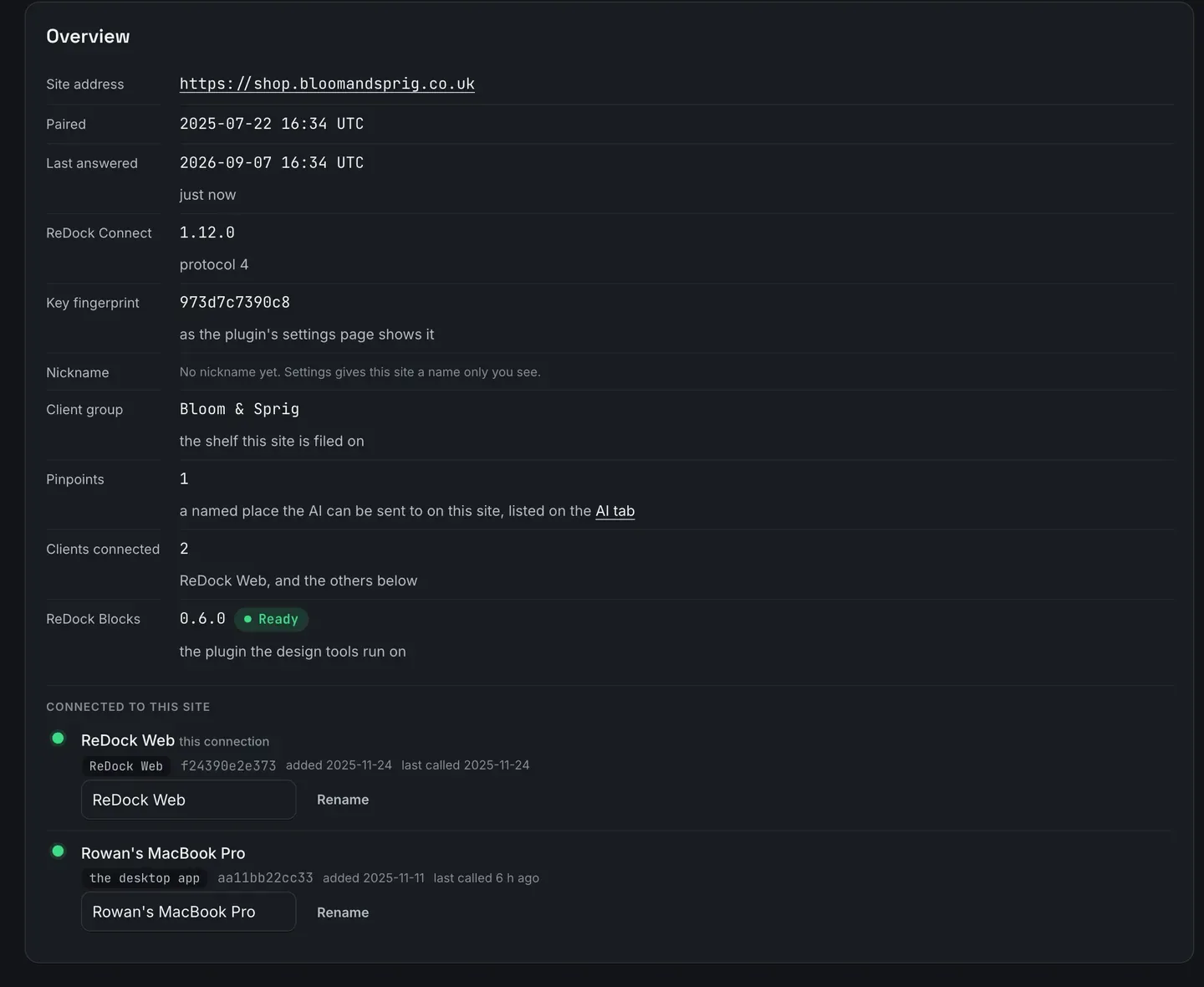
The key fingerprint is the one the plugin’s own settings page shows, so the two ends can be compared without either of them showing a key.
Clients connected lists everything holding a key to this site: this workspace, somebody’s desktop app, a colleague’s. Each can be renamed here and revoked from the site.
Health
Section titled “Health”Why the monitoring says what it says: the reasons, the certificate, the scheduled tasks that are overdue, and the system the site runs on. Watch a site’s state covers it.
Security
Section titled “Security”The six protections, two-factor sign-in, and the daily file check against what WordPress.org published. Look after a site’s security covers it.
Manage
Section titled “Manage”Seven things, each with its own sub-tab.
| Sub-tab | What it holds |
|---|---|
| Plugins | Every plugin, its version and state, what is out of date, the snapshot each carries and a Restore. See Roll a plugin back. |
| Theme | The active theme, its version, whether an update is waiting, and every other theme installed. |
| Controls | The things ReDock can change on a site without an AI in the loop. |
| Users | Who can sign in to the WordPress, and with what role. |
| Media | The site’s media library. |
| Database | Queries and a counted search and replace. |
| Content | Every post and page, and the four things to do with them. See Publish, unpublish and put a version back. |
Every button here runs the same tool an AI app runs, with you as the caller, so it meets the same walls and is recorded the same way.
What an AI app may do on this site, which apps reach it, the site’s own MCP address, and the pinpoints that name a place on it. A single site can be made stricter than the workspace here. See Let an AI app work on your sites.
What the site itself recorded, row by row, and counted by day.
Settings
Section titled “Settings”The nickname only your workspace sees, the client group the site is filed under, the key, and disconnecting the site.