People, roles and client groups
A workspace holds four roles. The useful one for an agency is Viewer: somebody who opens every site you give them, reads the health and the history, and cannot change a thing.
| Role | What it can do |
|---|---|
| Owner | Everything, including the plan and the workspace itself. |
| Admin | Connect and remove sites, approve AI apps, and manage people. |
| Member | Work on the sites: the AI and the buttons on a site page. |
| Viewer | Look, and nothing else. No buttons, no AI. |
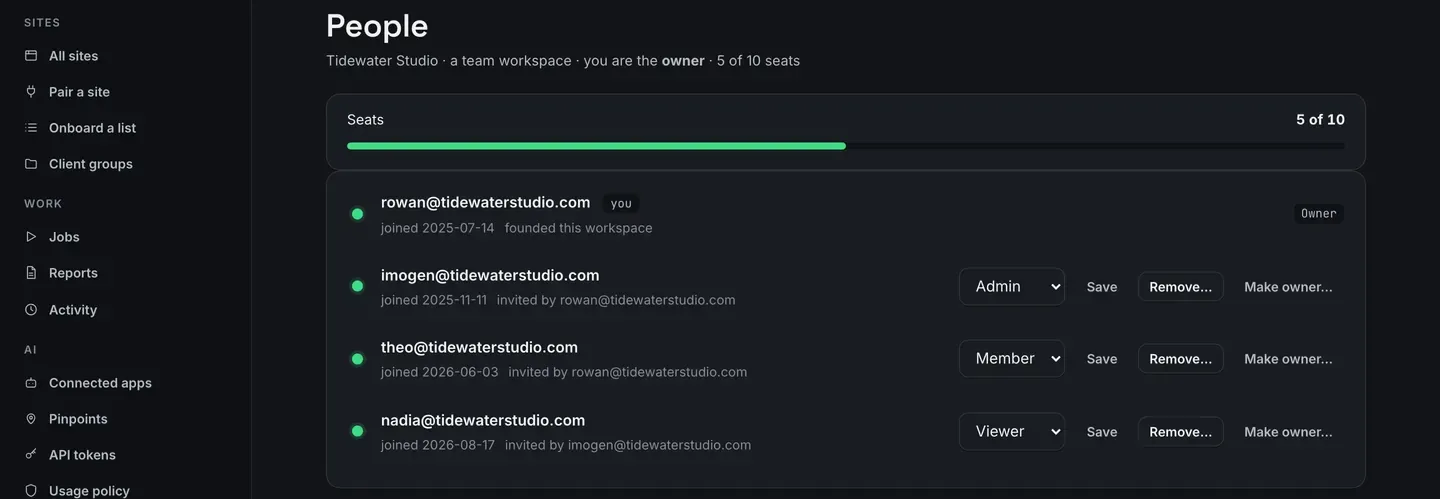
Every record says which role the person held when they did the thing. An invitation that has not been accepted yet still holds a seat.
Invite somebody
Section titled “Invite somebody”- Open People and type their email address under Invite somebody.
- Pick the role. The picker says what each role can do, so nobody has to remember the table above.
- Send it.
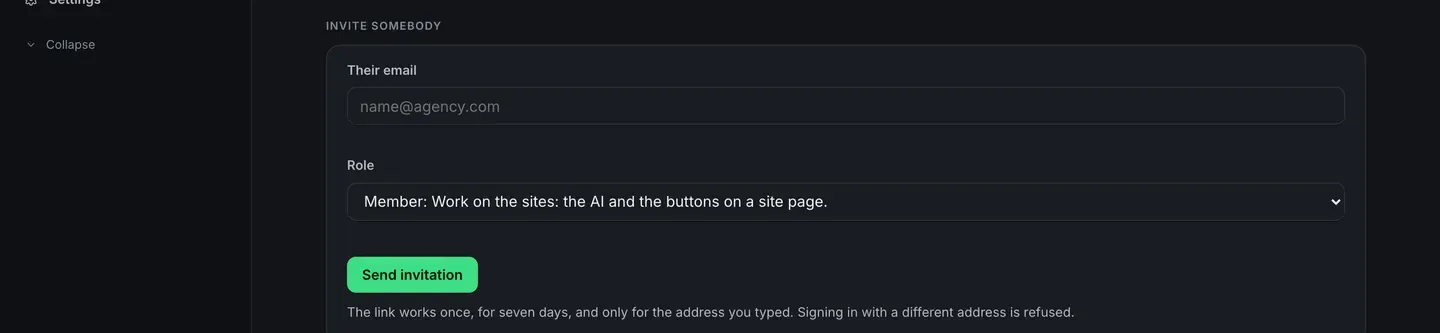
The link works once, for seven days, and only for the address you typed. Signing in with a different address is refused. An invitation that has not been taken up sits under Invited, not yet joined with Resend and Revoke.
Removing somebody
Section titled “Removing somebody”Removing somebody ends their access to every site in the workspace and disconnects their AI apps in the same moment. Their rows in Activity stay, because they are the record of what was done to somebody else’s WordPress.
Client groups
Section titled “Client groups”A client group is the customer. It is a shelf, not a permission: everybody in the workspace sees every site in every group.
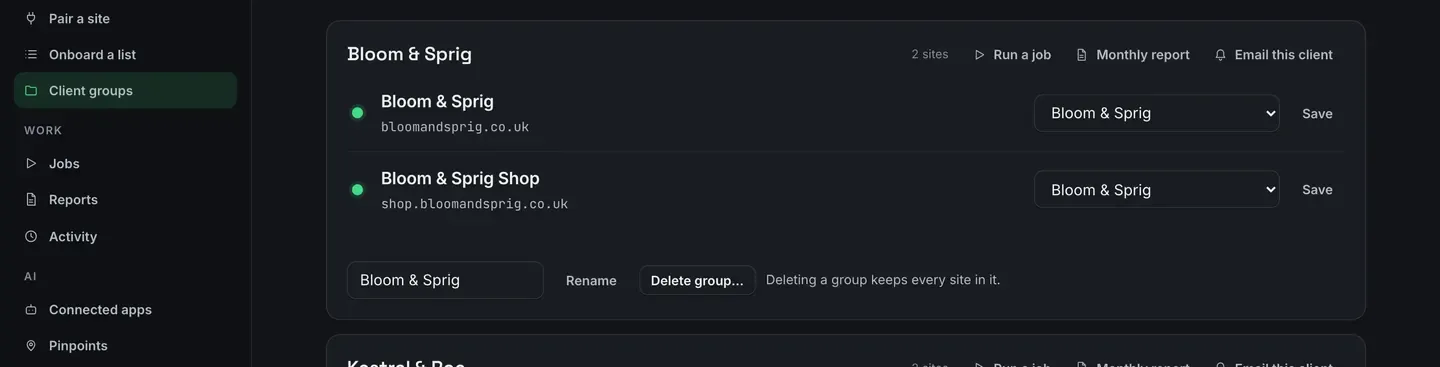
What a group is for:
- Filter the site list by it, so a client is one view.
- Point a whole job at it, so a client is one press. See Run a job.
- Write the month for it, and send that month to the client in your own name. See Monthly reports and Reports in your own name.
- Carry an uptime target, and say whether the month met it. See Watch a site’s state.
A batch of new sites can join a group as it connects, so the filing happens once rather than site by site afterwards. Deleting a group keeps every site in it.
Your company’s own sign-in
Section titled “Your company’s own sign-in”Connect Google Workspace, Microsoft Entra, Okta or any OpenID Connect provider to a workspace. Only the Owner can connect one, and only for an email domain they have proved.
-
Register one redirect address with your provider:
https://app.redock.xyz/sso/callbackas a web application, OpenID Connect, authorization code with PKCE. The address is the same for every workspace.
-
Paste the issuer, the client id and the client secret back into ReDock. Scopes must include
openid; the default is what Google Workspace, Microsoft Entra and Okta all accept. -
Give the email domain. Exactly one, no wildcards, and your own verified account address has to be at it. A public mail service cannot be connected.
-
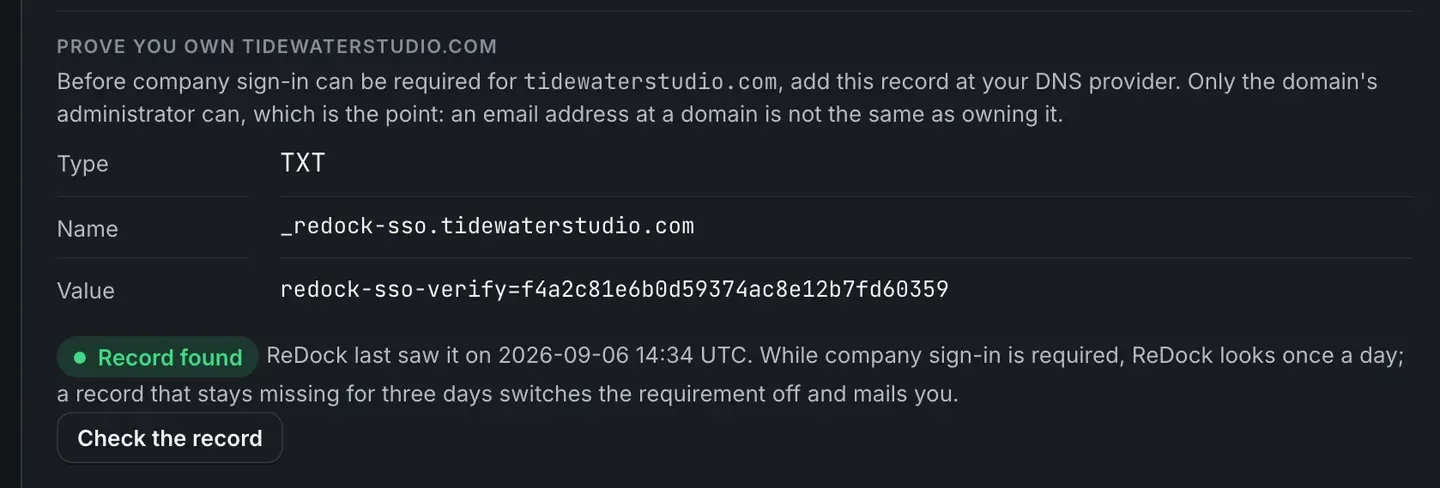
Prove you own the domain. Add the TXT record ReDock gives you at your DNS provider. Only the domain’s administrator can, which is the point: an email address at a domain is not the same as owning it.
-
Require it. Anybody at that domain is then sent to your provider, and a ReDock password is refused for that address.
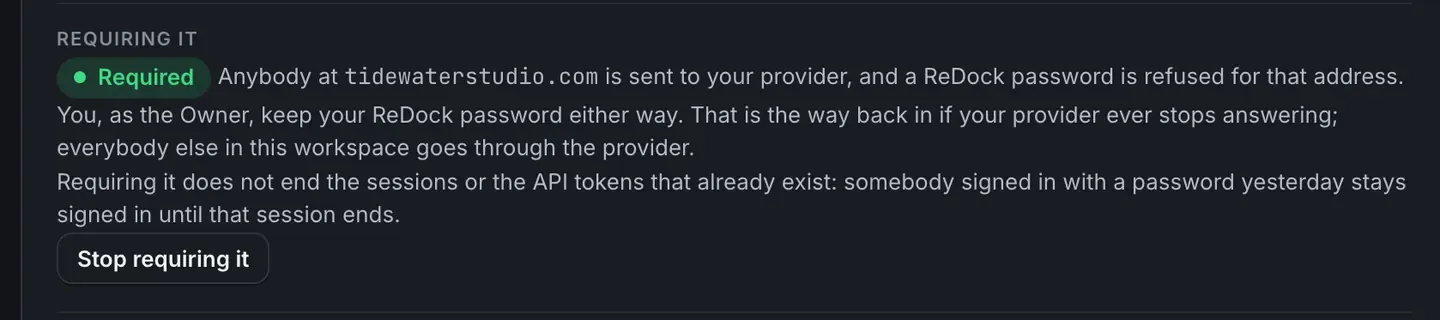
The owner keeps their ReDock password either way. That is the way back in if the provider ever stops answering.
Requiring it does not end the sessions or the API tokens that already exist: somebody signed in with a password yesterday stays signed in until that session ends. Sign everybody out ends every session of every person in the workspace right now, on every device.
A provider speaks for its own domain and for no other. Somebody outside the domain is refused, and told which domain it covers.