
Look after a site's security
A connected site has a Security tab of its own. It opens with a card saying whether anything is known against the site’s plugins and themes, then the protections you can switch on from here, then the daily check that compares the site’s files against what WordPress.org published.
Known vulnerabilities
Section titled “Known vulnerabilities”The Security card at the top compares every plugin and theme the site reports with the published vulnerability records. It says whether anything is known against the site, when it was checked and how many of the six protections are on.
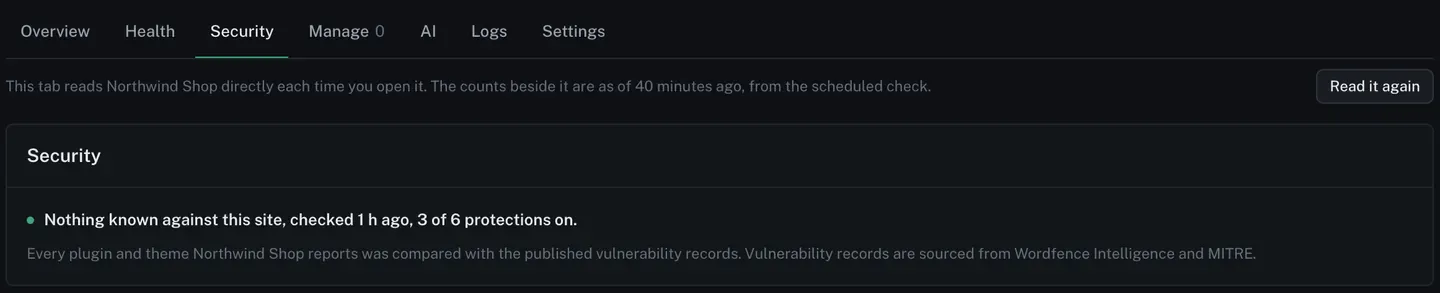
When a plugin or theme on the site does have a published vulnerability, it is marked Vulnerable on the site’s plugin list, and the sentence on the Health tab names the version that fixes it. A site whose plugin list could not be read in full says it could not check, and is never shown as clean. Find plugins with known vulnerabilities has the whole of it.
Vulnerability records are sourced from Wordfence Intelligence and MITRE.
The six protections
Section titled “The six protections”Each one is a switch, and each says in plain words what it does and what it costs.
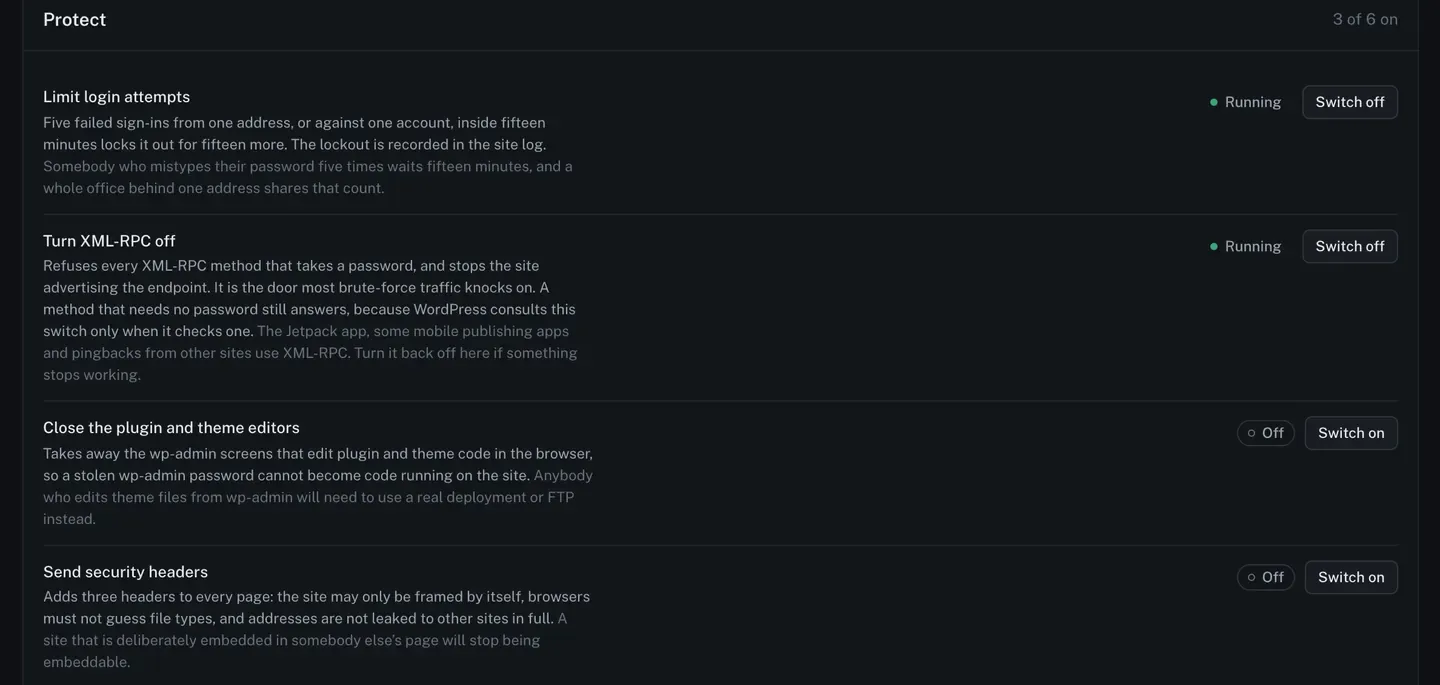
| Protection | What it does |
|---|---|
| Limit login attempts | Five failed sign-ins from one address, or against one account, inside fifteen minutes locks it out for fifteen more. The lockout is recorded in the site log. |
| Turn XML-RPC off | Refuses every XML-RPC method that takes a password, and stops the site advertising the endpoint. It is the door most brute-force traffic knocks on. |
| Close the plugin and theme editors | Takes away the wp-admin screens that edit plugin and theme code in the browser, so a stolen wp-admin password cannot become code running on the site. |
| Send security headers | Adds three headers to every page: the site may only be framed by itself, browsers must not guess file types, and addresses are not leaked to other sites in full. |
| Hide the WordPress version | Takes the version out of the page source and off the addresses of the files WordPress loads, so a scanner cannot read it at a glance. |
| Block user enumeration | Stops a stranger walking ?author=1, ?author=2 to collect the site’s usernames, and closes the REST user list to visitors. |
Each one names its own side effect rather than hiding it. Turning XML-RPC off stops the Jetpack app, some mobile publishing apps and pingbacks from other sites. Closing the editors means anybody who edits theme files from wp-admin will need a real deployment or FTP instead. Hiding the version hides the number, and does not update anything: a site behind on updates is still behind on them.
Locked-out addresses and two-factor sign-in
Section titled “Locked-out addresses and two-factor sign-in”Under the six, the same card counts the addresses the login limit has locked out today, and says where two-factor sign-in stands.
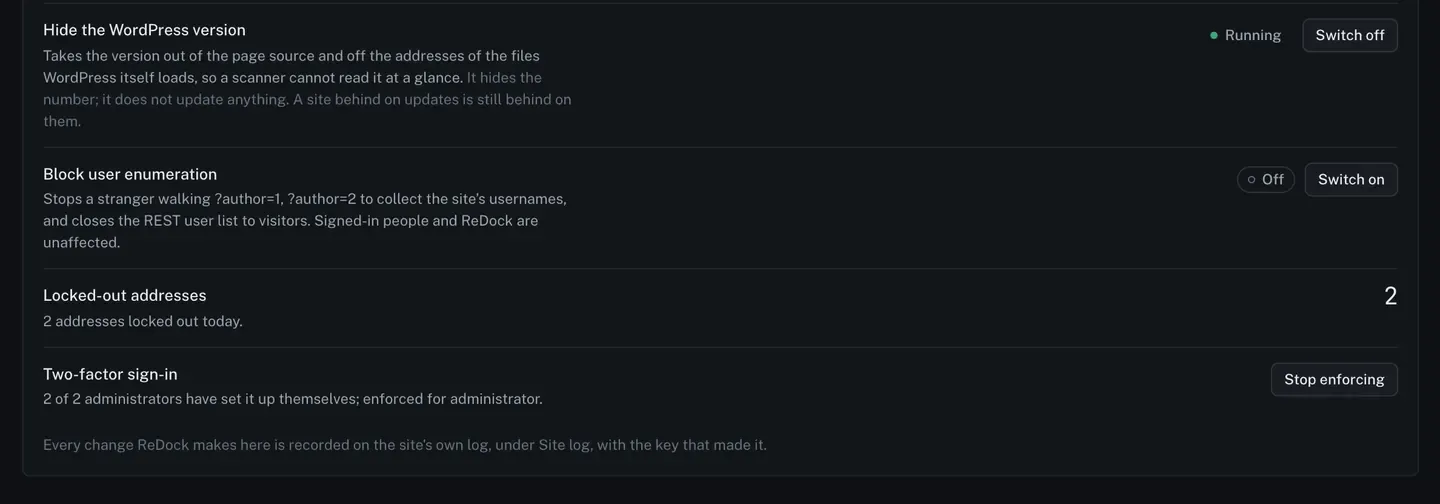
Administrators set two-factor up themselves. What ReDock does from here is enforce it, and stop enforcing it. On a site where the plugin is not installed, the card says so instead of pretending.
Every change ReDock makes on this card is recorded on the site’s own log, under Logs, with the key that made it.
When something is switched off outside ReDock
Section titled “When something is switched off outside ReDock”If a protection ReDock switched on comes back reporting itself off, the tab says so at the top, with the date ReDock switched it on and who did it.

Somebody changed them on the site, or a plugin or the host did. The strip does not guess which.
The daily file check
Section titled “The daily file check”Once a day, on the site, every core file and every plugin from the WordPress directory is compared
against the checksums those projects published. A manifest of wp-content is compared with the
last one. What comes back is a list of files, named.
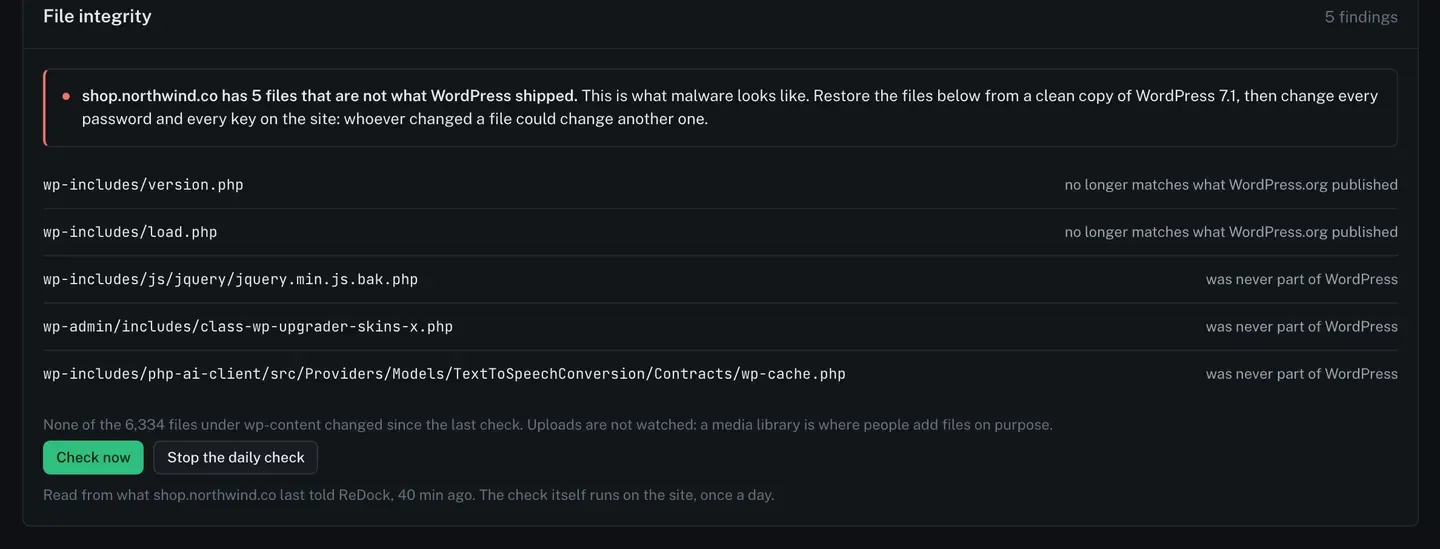
Two kinds of finding, and they mean different things:
- No longer matches what WordPress.org published. A file WordPress shipped has been edited.
- Was never part of WordPress. A file has been added into a directory WordPress owns.
Uploads are not watched, because a media library is where people add files on purpose.
Check now runs it out of turn. Stop the daily check ends it. The check itself runs on the site, once a day, and the tab shows what the site last reported.
If files have to be put back, the last fourteen daily copies of the whole site are in your own Google Drive, dated. Back up every site to Google Drive says where they are and how restoring from one works.
The debug log
Section titled “The debug log”WordPress writes its notices, warnings and fatal errors to a file when it is told to. ReDock can tell it to, from here, and read the file back.
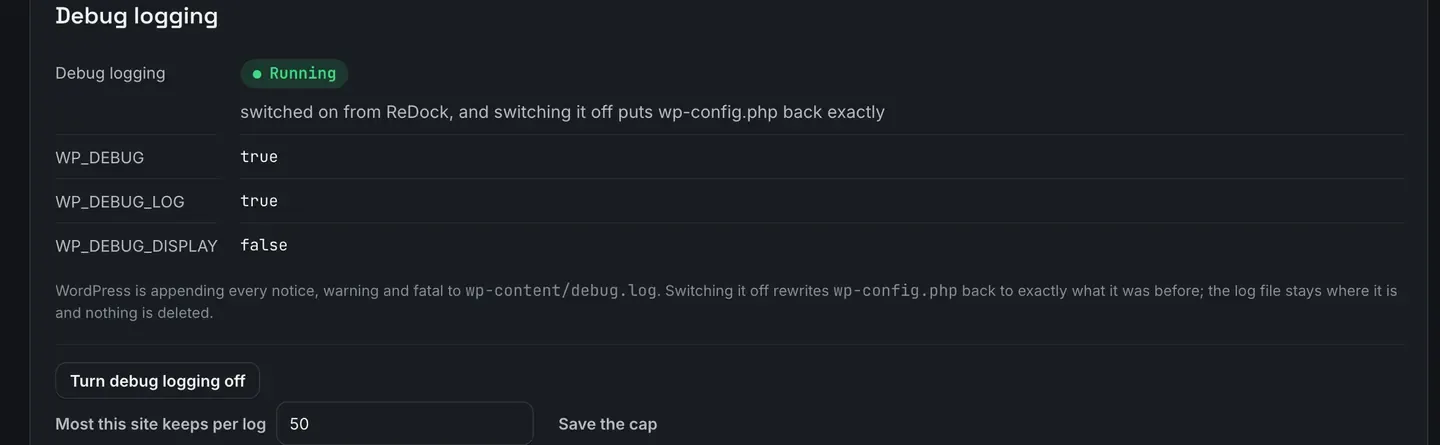
- Switching it on edits
wp-config.phpfor you and keeps a copy of what was there. Switching it off puts that back exactly, and the log file stays where it is. Nothing is deleted. WP_DEBUG_DISPLAYis set to false, so errors go to a file and never to a visitor.- The site keeps a cap you set per log, and three logs in all, so debug logging cannot fill the disk.
Read the log in the browser, search it by file name, class or message, and switch between the current log and the ones before it.
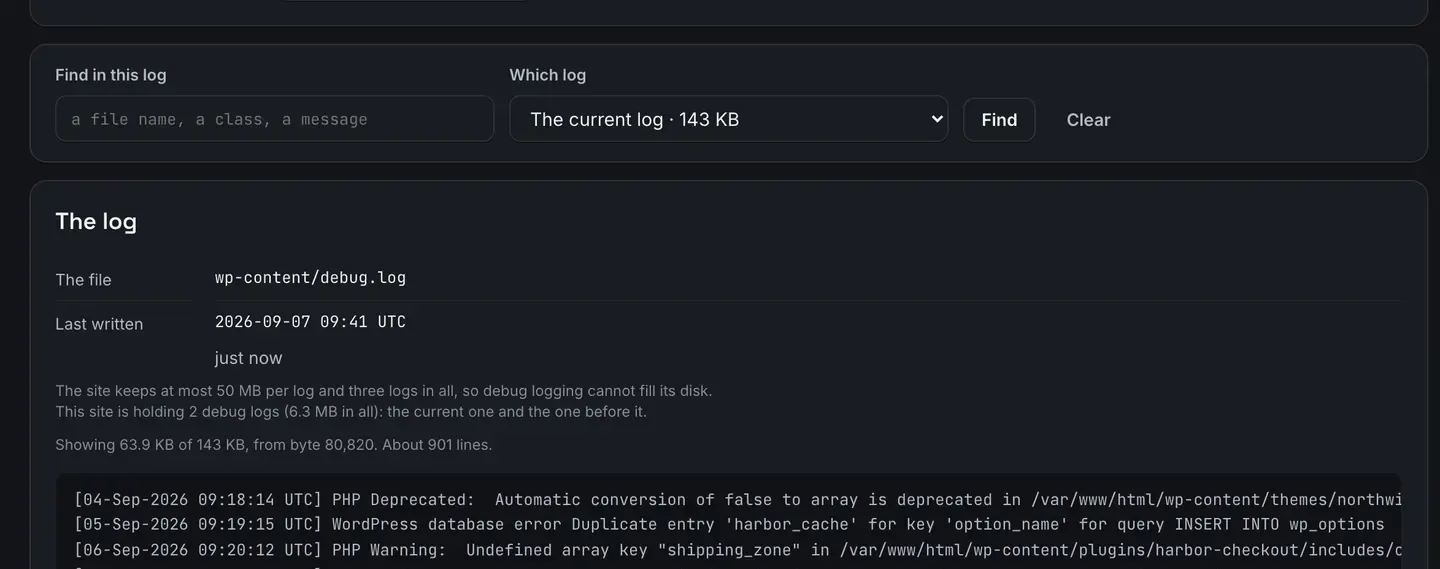
Downloading the whole log gives you a signed link.
Leave debug logging on only while you need it. Nothing here is automatic: ReDock never turns it on by itself, and it stays on until you switch it off.
Getting into wp-admin
Section titled “Getting into wp-admin”Sign in to wp-admin as an administrator is on every site’s header. No password crosses anything, and the sign-in is recorded like any other change.

Closing an account that has been got at
Section titled “Closing an account that has been got at”If somebody has your ReDock sign-in, closing the account cuts every way back in at once. It is on Your account, and the confirm page lists what happens before anything does.
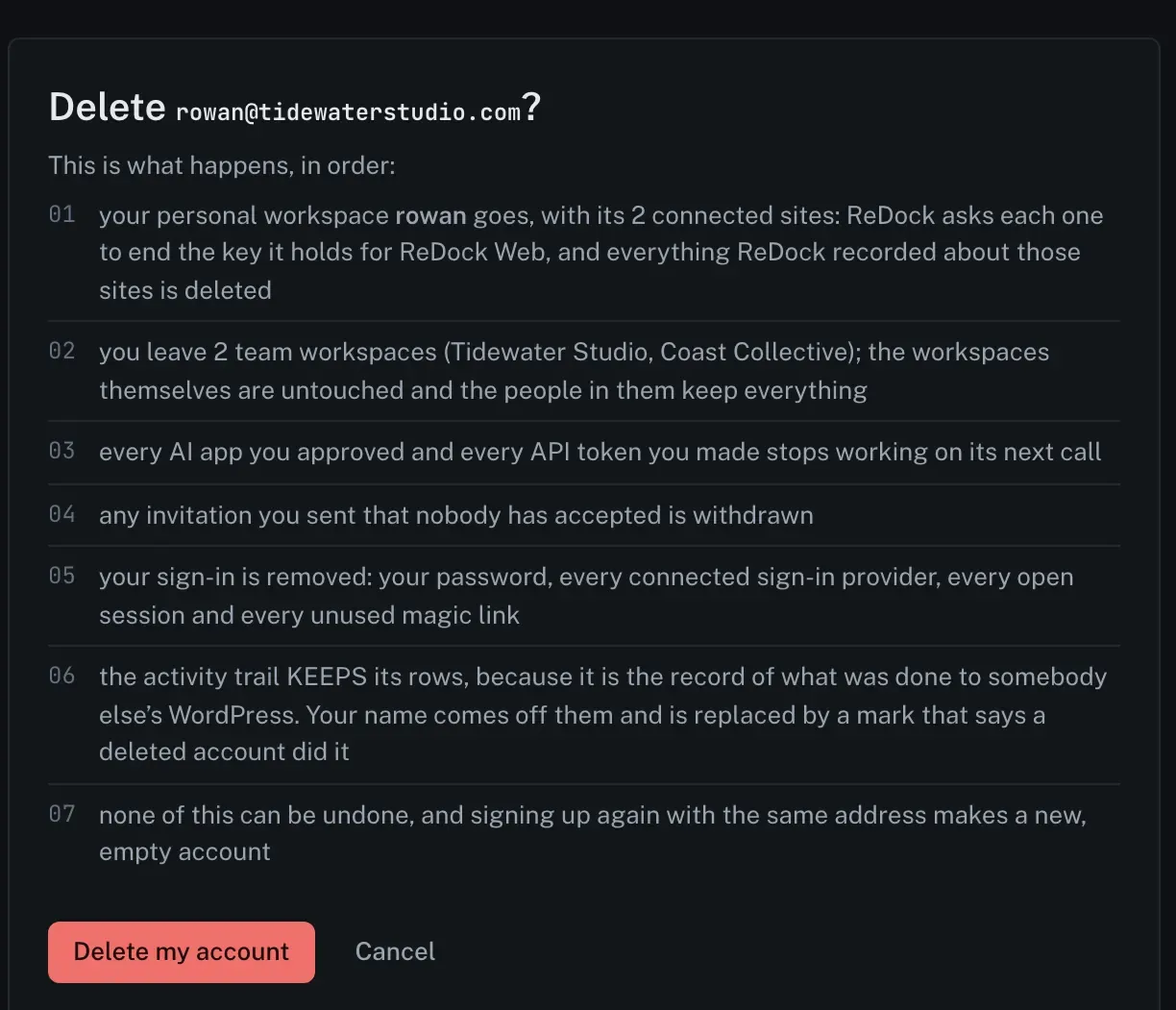
The part that matters when an account has been got at is the fifth line: the password, every connected sign-in provider, every open session and every unused sign-in link go together. The third line goes with it: approved AI apps and API tokens stop working on their next call.
The activity trail keeps its rows, because it is the record of what was done to somebody else’s WordPress. The name comes off them and is replaced by a mark saying a deleted account did it.
A team workspace you are only a member of is not yours to delete, and closing your account leaves it exactly as it is.