Roll a plugin back
Updating a plugin on a live site is the moment things break. So the snapshot is not a setting somebody has to remember: it is a step of the job, and the update does not run without it.
No snapshot, no update.
How the snapshot is taken
Section titled “How the snapshot is taken”When a job updates plugins, ReDock Web asks the site which plugins have an update waiting at the moment the step runs, copies each one aside, and only then updates. Asking at the moment of the update matters. An hour after you queued it, the list is a different list.
- The snapshot is stored on the site, by the site, through the same signed channel.
- A snapshot that fails stops the update for that site, and the row says so.
- A site running a ReDock Connect too old to snapshot is skipped rather than updated, unless you tick the box that says otherwise on the job form.
Putting a version back
Section titled “Putting a version back”The snapshot sits on the plugin’s row on the site’s page, with the version it holds and when it was taken. Restore puts that version back.
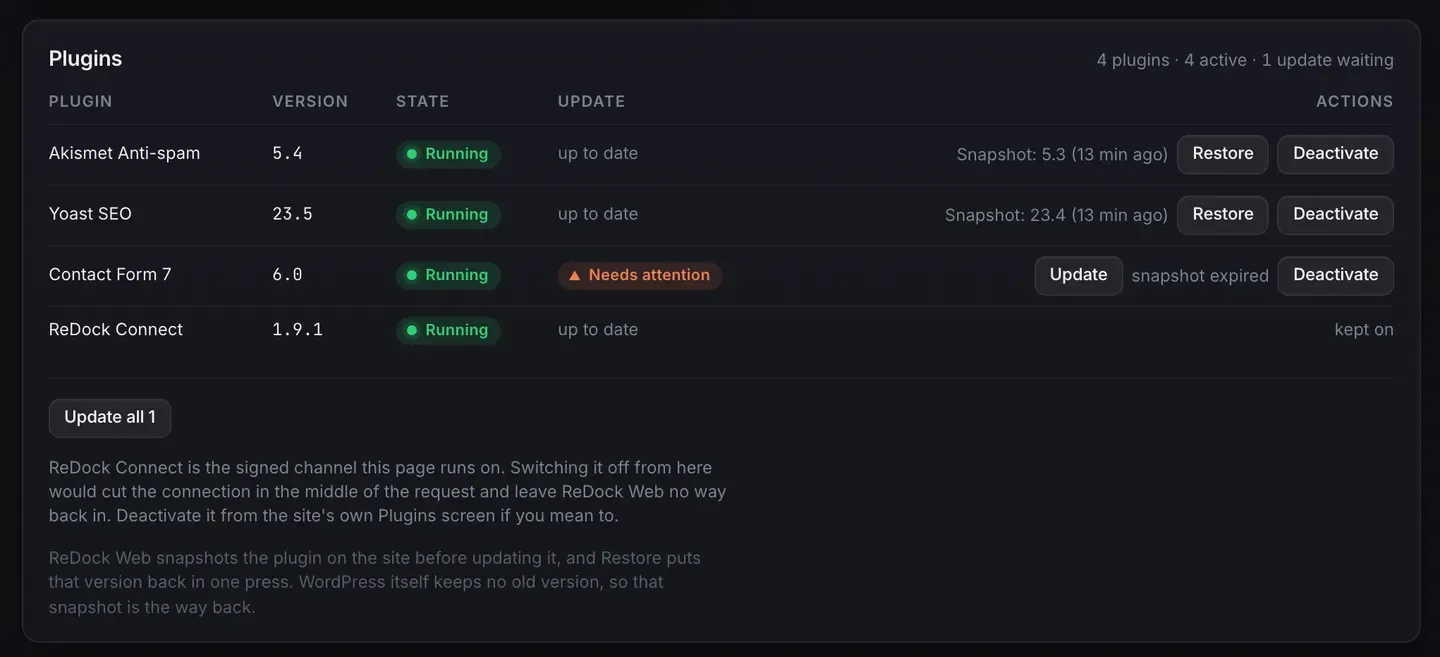
The restore is queued through the same queue as any other job, watched the same way, and recorded with your name on it. The version being put back is named on the screen before you press.
A snapshot holds a version the site had before an update. To put any other version on the site, older or newer, see Roll a plugin back to a version.
What it is not
Section titled “What it is not”This is rollback for a plugin update. It holds the plugin it replaced, not your database, not your uploads and not your theme’s files. WordPress itself keeps no old version of a plugin, which is why the snapshot exists at all.
The whole site is backed up separately. Once a day ReDock copies each connected site’s full archive, its files and its database, into your own Google Drive and keeps the last fourteen there. Back up every site to Google Drive explains how.
For WordPress core, there is no snapshot and no one-press way back. Update WordPress core explains what happens instead.