Back up every site to Google Drive with ReDock Web
Connect a Google account once, and every day ReDock Web copies a full backup of each connected site into that account’s Drive: the site’s files and its database, dated, in a folder of its own. The last fourteen copies of each site stay there. Older ones are deleted.
The copies are yours. They sit in your own Google account, ReDock keeps none of them, and they stay where they are if you stop paying for ReDock.
Connect a Google account
Section titled “Connect a Google account”-
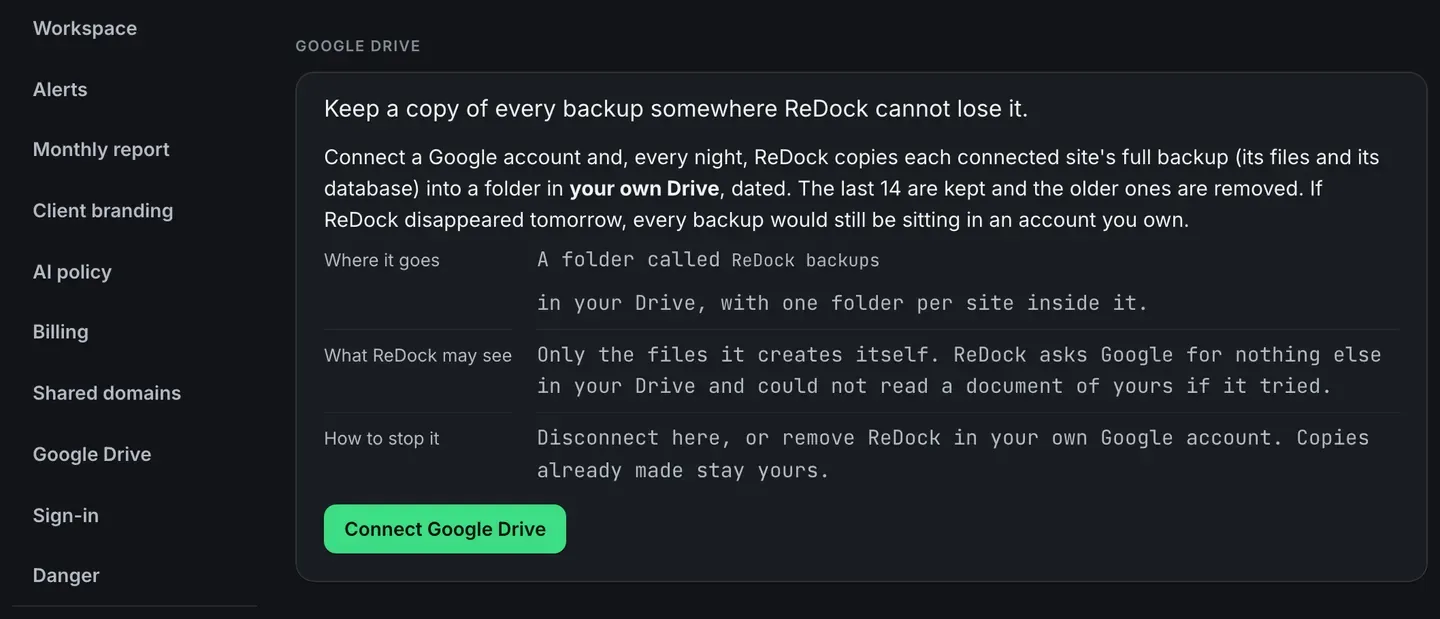
Open Settings, then Google Drive. Before anything is connected, the section says where the copies will go, what ReDock may see in your Drive and how to stop it.
Only an owner or an admin of the workspace can connect a Drive.
-
Press Connect Google Drive and approve on Google’s own screen. ReDock asks for the files it creates itself and nothing else, so it could not open a document of yours if it tried.
-
You come back to Settings with the Google account named. ReDock makes a folder called ReDock backups in that Drive, and each site gets a folder inside it.
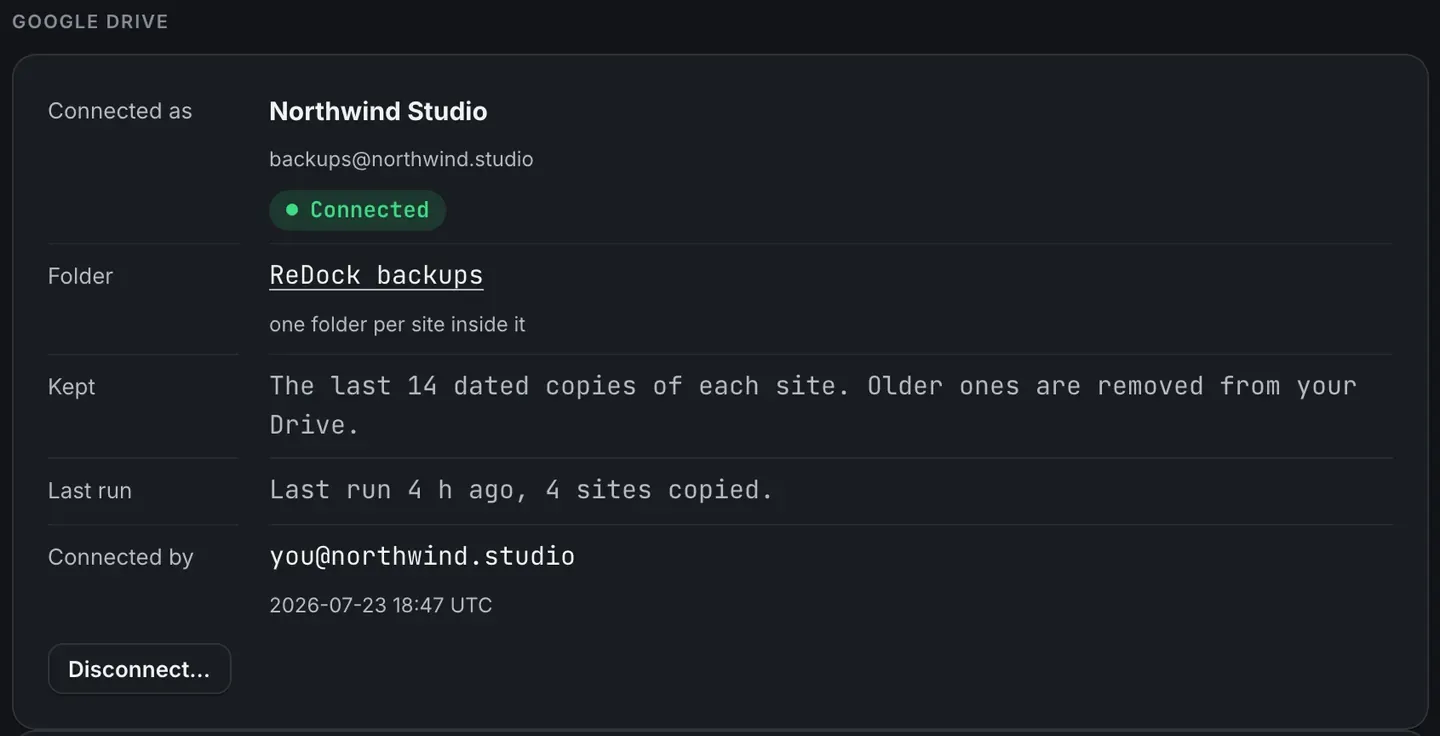
That is the whole of the setup. There is no schedule to pick and nothing to press again.
What happens each day
Section titled “What happens each day”For every connected site, once a day:
- ReDock asks the site, over ReDock Connect’s own signed connection, to build a full archive of its files and its database. The site builds it on its own server, which uses some of its disk for a while.
- ReDock carries the archive into the site’s folder in your Drive, one piece at a time. Each piece is checked against the fingerprint the site sent with it, so a piece that arrives damaged stops the copy instead of ending up inside it.
- Once a site has more than fourteen copies, the oldest is deleted. ReDock deletes only the files it recorded writing. It never lists the folder and never touches anything else in your Drive.
Nothing of the archive is stored by ReDock on the way through.
A big site can take longer than one run. When that happens, the next run carries on from where Google says the upload got to. If the site had to start its archive again in between, the half-finished copy is deleted from your Drive and a fresh one begins, so a partial backup never sits there under today’s date. And when a workspace has more sites than one run can reach, the ones it missed go first the next time.
Read the list of sites
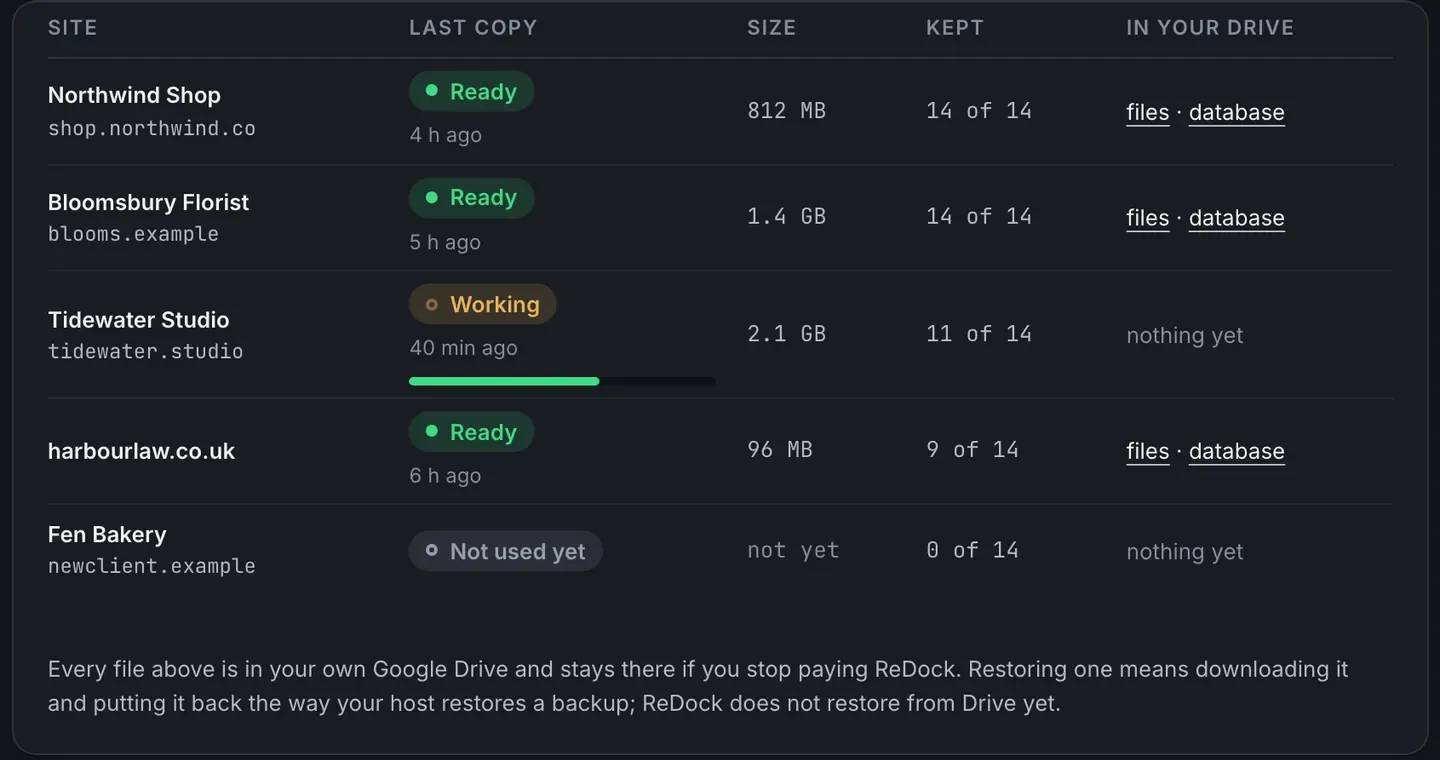
Section titled “Read the list of sites”Under the account, every connected site has a row.
| Column | What it tells you |
|---|---|
| Last copy | Ready and when it finished, Working with a bar while a copy is under way, or Not used yet for a site with no copy so far |
| Size | how big the last copy was |
| Kept | how many of the fourteen are in your Drive |
| In your Drive | links to the site’s files and its database |
Last run, above the list, says when ReDock last ran and how many sites it copied.
When a copy fails
Section titled “When a copy fails”Trouble shows in one of two places.
Google refused the run. A red notice sits at the top of the section with Google’s own words and the time of the last copy that worked. If somebody removed ReDock’s access in the Google account, the notice tells you to press Disconnect and connect again.

One site could not be copied. The reason sits under that site’s row. In this one, the host had 1.1 GB free and the archive needed about 2.4 GB, so the site could not build it.
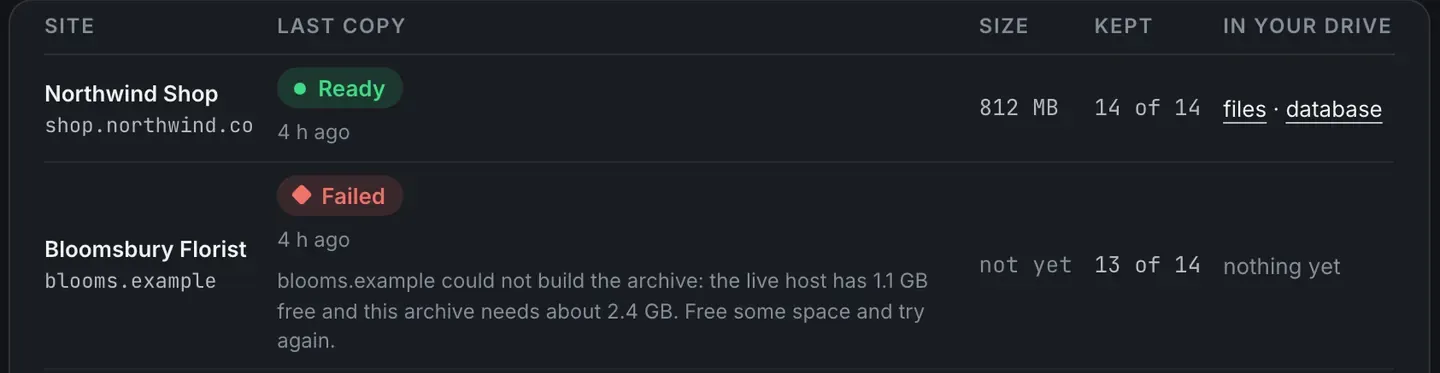
A failed copy is not emailed to anyone, so this section is where you find out. It is worth a look now and then.
Restore from a copy
Section titled “Restore from a copy”Each copy is two downloads, the files and the database, and the links in the list open them in your Drive. Restoring means downloading them and putting them back the way your host restores a backup. ReDock does not restore from Drive itself.
Disconnect
Section titled “Disconnect”Disconnect… opens a confirm that lists what will happen, in order.
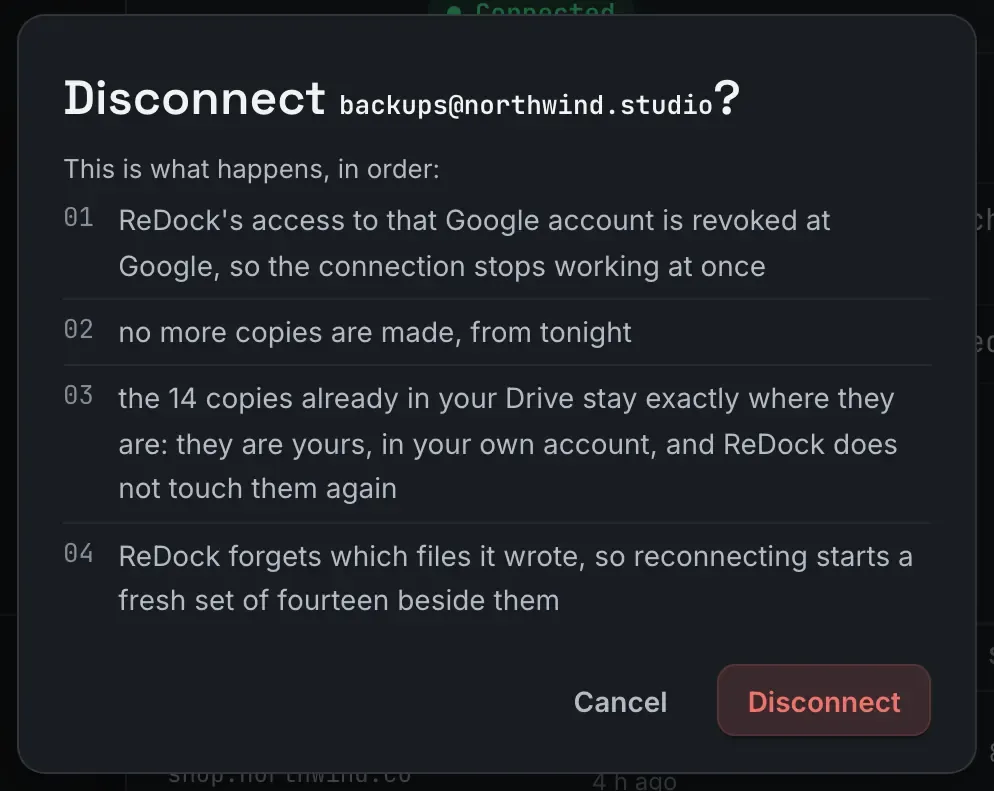
Access is revoked at Google straight away and no more copies are made. The copies already in your Drive stay where they are, and ReDock never touches them again. Connect later and a fresh set of fourteen starts beside the old ones.
You can also remove ReDock from the Google account itself. Either way, the copies already made stay yours.
The archive a WordPress update needs
Section titled “The archive a WordPress update needs”ReDock will not update WordPress core on a site whose last full backup is more than 24 hours old, and this daily copy is where that backup comes from. See Update WordPress core.
Open ReDock Web, or create an account if you do not have one yet.